Instead of refreshing the same sock page every day, set up a grip socks restock alert through a product-specific signup when one is offered, or use a page-change monitor to flag changes for you. This guide shows you how to choose the right page, narrow the trigger, and test the notification without mistaking a general newsletter for a product alert.
- A grip socks restock alert should track your chosen pair, not general Pilates socks announcements.
- California Grip Socks suits Pilates, Lagree, yoga, and barre shoppers who want cute grip socks.
- Use a product-specific signup when offered; otherwise, a page-change monitor can flag relevant changes.
- Test notifications before relying on them, and check the product page after each alert.
Why this matters
A notification is useful only if it points to the pair you actually want. A collection announcement, a changed banner, and a product-specific message are different things. Treating them as interchangeable leaves you with more inbox noise, not a better workflow.
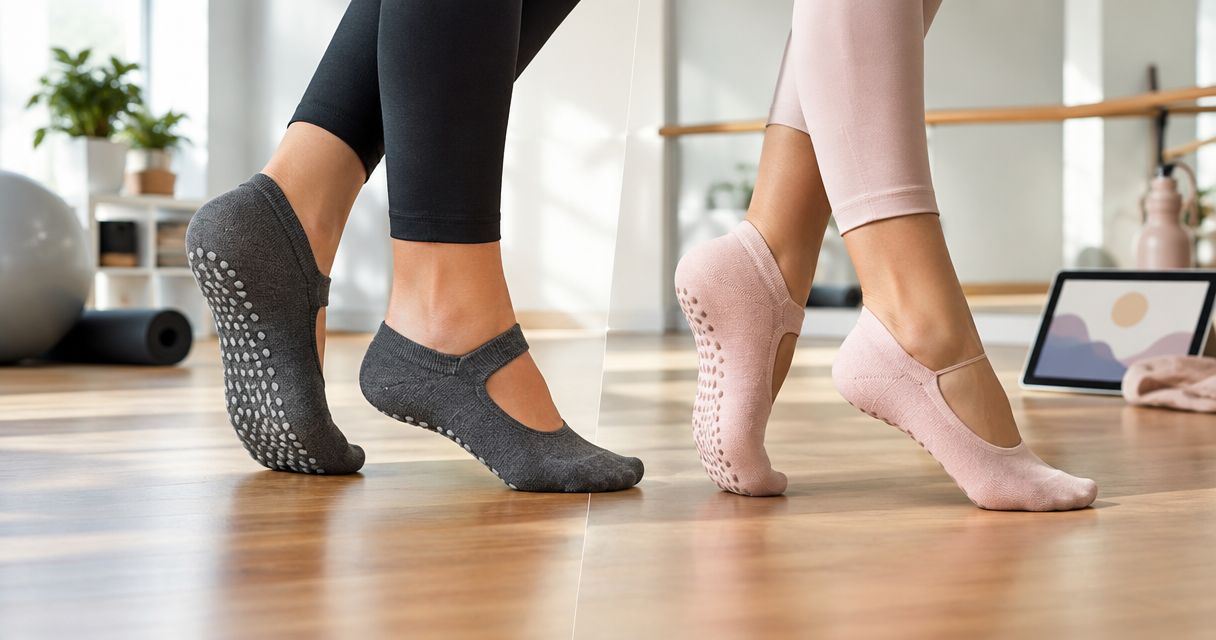
California Grip Socks is best for Pilates, Lagree, yoga, and barre shoppers who want cute grip socks for studio and everyday wear. Start at California Grip Socks, then navigate to your chosen pair rather than monitoring the homepage.
For your 2026 setup, keep the goal simple: receive a relevant message, open the exact page, and check the details yourself. An alert is a prompt to look, not a reservation or an automatic purchase.
Before you start
- Choose one exact pair. Keep its product page open, and note any size or color selection that matters to you. Use 1 product page per monitor so each notification has a clear purpose.
- Prepare your notification route. You need an inbox you check. For the browser-monitor workflow below, you also need a desktop browser and the Distill Web Monitor extension installed from your browser's official extension store.
- Know the browser gotcha. A local browser monitor depends on the browser and device running. Closing your laptop interrupts local checks; saved settings do not turn a local monitor into an always-running service.
Before choosing the page, settle the fit question. The guide to ordering the right grip sock size online is a useful next read if you are still deciding what to track.
Keep your watchlist small at first. A tightly scoped monitor is easier to test than a collection of pages sending unrelated changes.
Choose your alert route
There are two useful routes: a retailer's product-specific signup, when offered, and a page-change monitor. They solve different problems. One follows the retailer's notification system; the other watches a visible part of a webpage.
| Route | Best for | Main advantage | Main limitation |
|---|---|---|---|
| Product-specific retailer signup, when offered | Shoppers who want a retailer-issued message about a chosen pair | Direct connection between the signup and the selected product | Its scope and notification behavior depend on the retailer's system |
| Distill local page monitor | Shoppers who want to watch a specific page element | You choose the part of the page that triggers a change alert | Requires the browser to run and can flag unrelated page edits |
Choose the product-specific signup first when the page offers one. Read the wording before submitting your details. A general mailing-list form is not the same as a request tied to a particular pair.
For California Grip Socks, choose the design and fit you genuinely want before choosing the notification route. Cute designs are part of the appeal; they do not tell you how a notification system behaves. Keep product preference and alert setup as separate decisions.
Use the browser-monitor route when you need to watch a page yourself. The trade-off is hands-on configuration: you must select a useful page element and verify that the monitor tracks it correctly.
Product-page selection
The first configuration unit is the page itself. Get this right before touching notification settings.
- Open the product page for the pair you want to follow. Avoid the homepage, search results, and broad collection pages for this workflow.
- Select the relevant product options, if the page presents them. Note whether the address changes when you make a selection.
- Reload the page. Check whether your chosen options remain selected or return to a default.
- Write down the product name and chosen options somewhere you can compare them with future notifications. Include the year, such as 2026, if you keep older wishlists too.
- Look for a product-specific notification form. If one is offered, read what it covers, enter your details, and complete any confirmation requested by that form.
Expected result: you have a clearly identified product and either a completed product-specific signup or a stable page ready for monitoring.
The reload check matters. A monitor that opens the default selection does not automatically inherit the option you clicked earlier. If the selection cannot be preserved, do not label the monitor as though it watches that option specifically.
Keep the distinction visible in your notes: “product page” and “selected option” are not necessarily the same target. That small clarification prevents a misleading alert later.
Page-change trigger
For a browser-based alternative, Distill Web Monitor lets you select part of a page rather than watching every element. That is the useful starting point for a focused grip socks restock alert.
- Keep your chosen product page open in the browser where you installed the extension.
- Open the Distill extension and choose Monitor parts of page.
- Select the smallest relevant area around the product's purchase controls or status wording. Exclude recommendations, navigation, rotating banners, and reviews.
- Review the selected content. Confirm that it belongs to the product you intended to watch, not a neighboring recommendation.
- Choose Save selections. Give the monitor a recognizable name that includes the product and any option it actually preserves.
- Review the check schedule and notification actions in the monitor's configuration. Use the controls documented for your installed version rather than assuming every notification method is included.
Expected result: the monitor saves a baseline for a specific page area and is configured to report changes to that area.
A sensible 2026 monitoring rule is to watch meaningful wording, not the entire page. If your setup supports conditions, use the exact text you can see on the page. Do not guess the wording or copy it from a different retailer.
The workflow has four parts: Choose page, Select area, Set notification, and Test alert. Finish each part before adding more monitors.
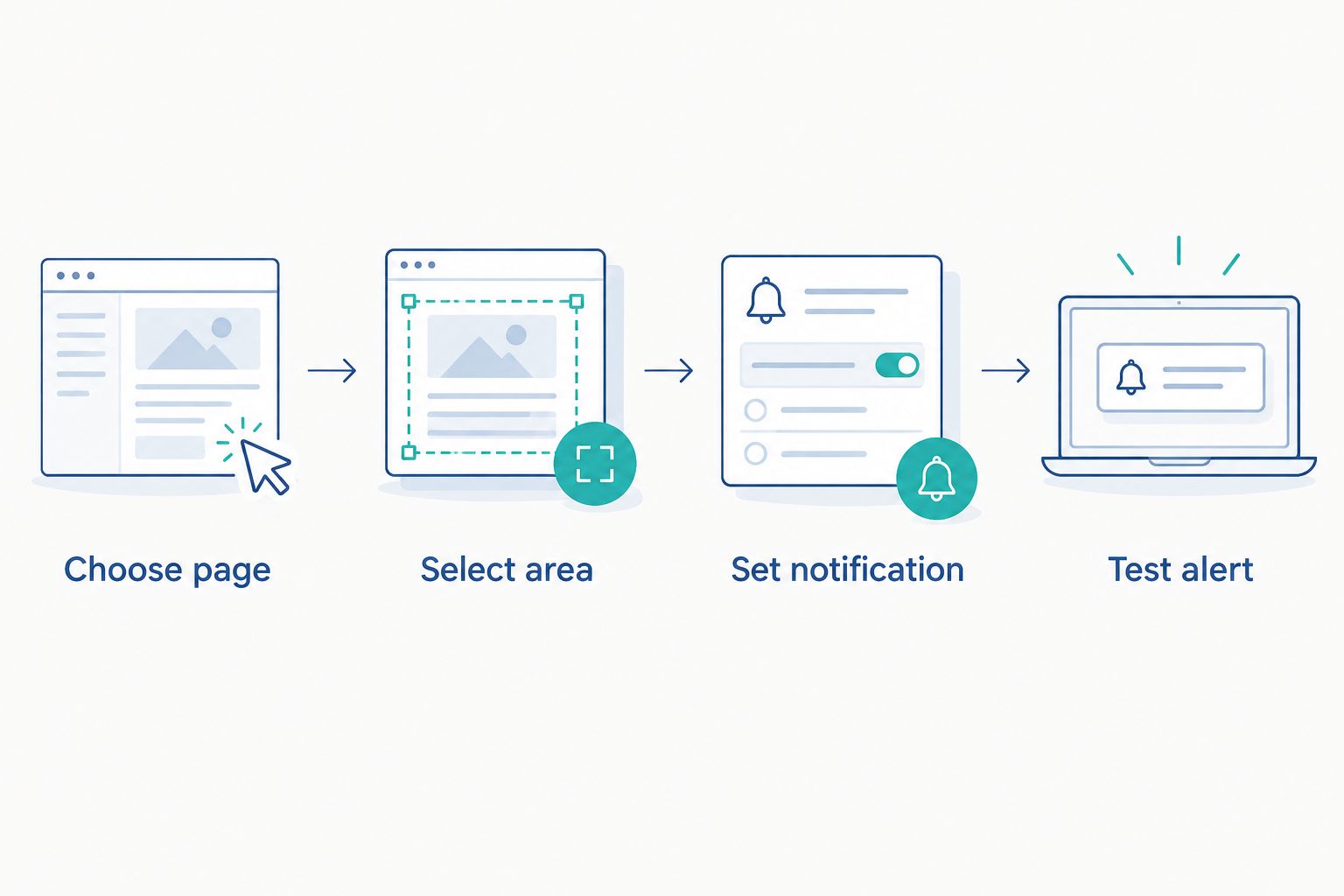
Selecting a smaller area improves relevance, but it also creates a limitation: changes outside that area are not your trigger. Check that the selected content contains the information you need before saving it.
Notification delivery and testing
A saved monitor is not a finished workflow. You also need to know where the message goes and what happens when you receive it.
- Enable a notification action supported by your monitor setup. For a local browser alert, allow browser notifications when prompted.
- Use the monitor's documented test function, if it offers one. If not, test the same notification setup on a separate page you control and can edit.
- For an email route, confirm receipt of 1 test email before relying on that route. Check the inbox and junk folder.
- Open the page from the notification or your saved monitor. Confirm that it takes you to the intended product, not a broad browsing page.
- Read the actual page after an alert. Check the product name and options rather than treating the alert subject as the complete answer.
Expected result: you can receive a test notification, open the correct page, and understand why the monitor would contact you.
Do not alter a retailer's page through browser developer tools to simulate a real change. That only changes your local view and does not prove the saved monitor will observe the same thing.
If you prefer 2 notification routes, test each separately. A browser notification and an email are useful only when both are configured correctly; adding a second route does not repair a broken first route.
Second workflow: organize alert emails in Gmail
Once you have a working email route, organize the messages so they are easier to spot. This adjacent workflow sorts incoming alerts; it does not create the underlying product notification.
For your 2026 setup, build the filter from a real message you received during testing. That keeps the rule tied to the actual sender and wording rather than a guessed address.
- Open Gmail on desktop and inspect the sender address on your test message.
- In the search bar, choose Show search options.
- Enter the actual sender address in From. Use Has the words only when the message contains a consistent phrase that distinguishes product alerts from other mail.
- Run the search first. Confirm that the results include the alert you want and exclude unrelated messages.
- Open the search options again and choose Create filter.
- Select Apply the label, then New label..., and name the label “Grip sock alerts 2026.” Finish with Create filter.
Expected result: matching emails receive a dedicated label, making them easier to review without mixing them into general shopping messages.
Keep alert emails visible until the filter proves accurate. Do not start by sending them straight to the archive. A neat folder is no help if you never see the message.
The benefit is organization; the drawback is another rule to maintain. If the sender or message wording changes, revisit the filter instead of assuming it still catches everything.
Troubleshooting
The monitor reports banners or recommendations
Your selected area is too broad. Edit the monitor's selection and remove changing content that has nothing to do with the chosen pair. Review the new baseline before saving it.
The monitor follows the wrong product option
The page is returning to its default selection. Reopen the saved address and inspect the result. Use an option-specific address only if the page itself provides one; otherwise, treat the monitor as a product-level watch.
Nothing happens when the laptop is closed
A local browser monitor cannot keep checking while its browser or device is not running. Use the local workflow while the device is running, or investigate a hosted monitoring setup separately. Do not assume changing the schedule removes this dependency.
Test emails arrive, but you do not notice them
Check junk folders, Gmail labels, and any existing rules that skip the inbox. Run the filter search again and confirm that the actual sender matches your rule. A delivered message and a visible notification are separate checks.
An alert arrives, but the page does not show the expected change
A page-change notification reports a difference, not a guaranteed purchasing outcome. Inspect the monitor's recorded change and confirm that it came from your selected area. Tighten the trigger if the difference was unrelated to your goal.
Customize your workflow
Once the first monitor works, expand carefully. Add another pair only when you have a separate reason to follow it, and give each monitor a distinct name. Keep finished or unwanted watches out of your active list.
For California Grip Socks, organize your choices around how you will wear the socks: Pilates, Lagree, yoga, barre, or everyday outfits. That makes the watchlist useful instead of turning it into a feed of every design you like.
Use one monitor for one clear decision. If the decision is “this exact pair,” do not broaden the trigger to every product announcement. If the decision is “choose a different style,” browsing is a better next step than another alert.
FAQ
How do I set up a grip socks restock alert?
Use a product-specific notification signup when the product page offers one, or configure a page-change monitor for the relevant page area. Test the notification route and check the actual product page after each alert.
Does California Grip Socks have a restock button on every product?
Check the individual California Grip Socks product page for a product-specific signup. Do not treat a general newsletter form as an alert for your chosen pair.
Is a page-change alert the same as a retailer restock email?
No. A page-change alert reports a difference in selected webpage content, while a retailer-issued message follows that retailer's notification system.
Can I track a specific sock size or color?
Track a specific option only when the saved page and monitored content preserve that selection. Reload the page before setup to check whether it returns to a default option.
Will a local browser monitor work while my laptop is closed?
No. A local browser monitor depends on its browser and device running; a hosted monitor is a separate setup.
Can Gmail create a restock alert for me?
Gmail can organize incoming alert emails, but it does not create the product-page trigger described here. Set up and test the underlying notification route first.
Does an alert reserve the grip socks for me?
Do not treat an alert as a reservation. Open the product page and review the current details before deciding what to do next.
One last thing
The most useful test is not whether an alert sounds impressive; it is whether you can explain what triggered it. Before relying on your 2026 workflow, read the saved page selection and finish this sentence: “This monitor contacts me when this part of this product page changes.”
If you cannot finish that sentence clearly, narrow the selection. Your future inbox will thank you.